
Cloud authorization
Cloud authorization is the formal product authorization model provided to MapGIS users. After purchasing/trialing a product on the "Cloud Trading Center (http://www.smaryun.com/index.php)," users can obtain the cloud authorization information for the corresponding product. It is suitable for small-scale IGServer users who only need to purchase/trial a single MapGIS IGServer product, or for confidential units that cannot insert USB devices.
- The online status of the Cloud Authorization IGServer product allows for direct authorization authentication, while the offline status requires authorization authentication through scanning a QR code;
- A cloud license can only be used on one machine, and must be uninstalled before it can be used on another machine;
- For confidential units that cannot insert USB devices, single or multiple cloud licenses MapGIS IGServer can be purchased;
- The IGServer (JiuZhou) installation package does not contain any authorization information and can be copied and used repeatedly.
Product installation
MapGIS IGServer (JiuZhou) supports both Windows and Linux operating systems, including installation packages in the formats of "*.zip" and "*.tar.gz". Here, "*.zip" is the installation package for the Windows operating system, and "*.tar.gz" is the installation package for the Linux operating system. Users can choose the installation package that suits their needs.
The installation package installation methods differ for Windows and Linux environments, which will be introduced in detail below.
Windows installation (*.zip)
1. Once users obtain the installation package, they can begin the installation. The product installation package includes two parts: the product zip compressed file and the "*.lic" license file;
2. Run the extracted installation package exe as administrator to install the product;
3. Click "Next", confirm the user license agreement, and check "I agree to this agreement";
Tips:
The installer will check if the machine is missing any essential dependencies required for this product. If there are missing components, click "Install from Local" to automatically launch the corresponding installer. Use the default installation mode.
4. Click "Next", select the installation storage path;
5. Click "Next" to set the Start menu shortcut;
6. Click "Install" until completion.
7. Copy the authorized “*.lic” file to the “..\MapGIS 10\license” folder in the system installation directory:

Tips:
1、By default, there is no "license" folder under the "..\MapGIS 10" directory, and users can manually create an empty folder.
2、The cloud authorization name for IGServer (JiuZhou) is either "DCA34CBC2D66190D1BCD01541EA8DE60.lic" or "E6B09E42C502AE2FAF98C2D9F322109D.lic", where "*.lic" must be the authorization file for the IGServer (JiuZhou) product and the name must be exactly the same. It cannot have suffixes like "(1)" added, nor can it be modified to this name using "*.lic" files from other products.
8. Run startup.bat in the administrator mode in the installation directory "..\MapGIS 10\igserver_for_java\bin" to start the IGServer service;
9. Use a browser to access ServerManager(http://IP:8089);
10. If the client machine is networked at this time, authorization authentication can be performed automatically.
11. If the client is offline at this time, a QR code authentication dialog box will pop up:
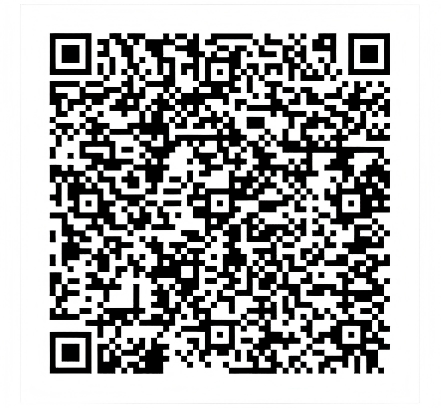
12. You can scan the QR code to obtain authentication information via your mobile browser (WeChat is not recommended) or other third-party apps:

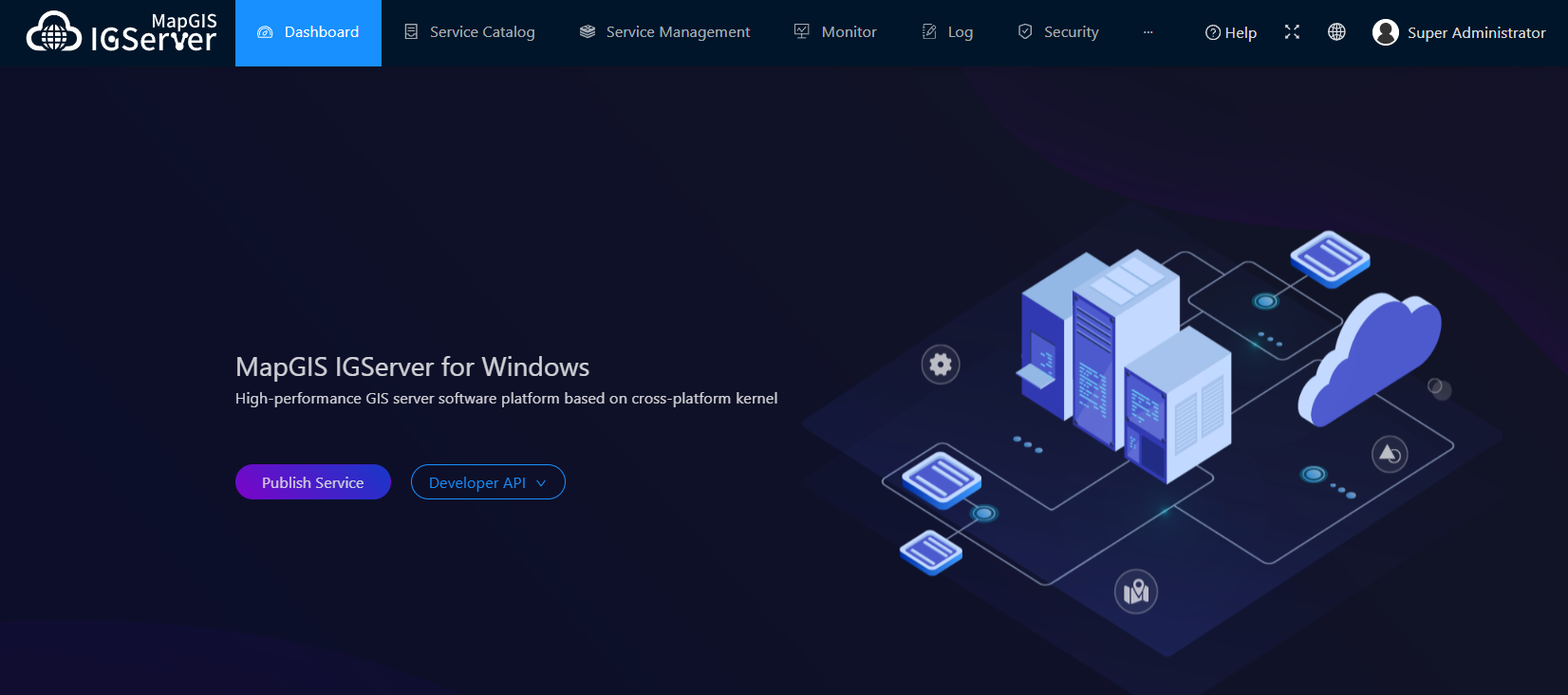
13. After successful authentication, restart the IGServer service, use your browser again to access ServerManager(http://IP:8089), enter your username and password to access MapGIS ServerManager.
Tips:
The default username is admin, and the default password is sa.mapgis. You can click "Help" on the login page to fill it in.
Linux installation (*.tar.gz)
After purchasing the MapGIS IGServer (JiuZhou) cloud authorized product, you can obtain the following two files:
- Product installation package:mapgis-igserver-java-****.tar.gz
- Authorization document:DCA34CBC2D66190D1BCD01541EA8DE60.lic
For different Linux operating systems, the command execution varies slightly. The following steps use the centOS operating system as an example to explain the installation and startup steps for MapGIS IGServer (JiuZhou).
1. Copy the product installation package and the authorization file to the Linux operating system;
2. Unpack the tar.gz archive using the following command (where mapgis-igserver-java-****.tar.gz is the product package name):
tar -xzvf mapgis-igserver-java-****.tar.gzTips:
When installing MapGIS IGServer (JiuZhou), it does not require the user to be root, but it does require read, write, and execute (777) permissions for the product installation package and license file.
3. After extraction, a folder named "mapgis10" can be generated. You must check the system dependencies according to "InstallRequirements" to ensure all dependencies are normal before proceeding with subsequent operations.
4. Copy the authorization "*.lic" file into the "license" folder under "mapgis10":

Tips:
1、By default, there is no "license" folder under the "..\MapGIS 10" directory, and users can manually create an empty folder.
2、The cloud authorization name for IGServer (JiuZhou) is either "DCA34CBC2D66190D1BCD01541EA8DE60.lic" or "E6B09E42C502AE2FAF98C2D9F322109D.lic", where "*.lic" must be the authorization file for the IGServer (JiuZhou) product and the name must be exactly the same. It cannot have suffixes like "(1)" added, nor can it be modified to this name using "*.lic" files from other products.
5. Locate to ".". /mapgis10" folder, run the following command to start the IGServer service:
bash startall.sh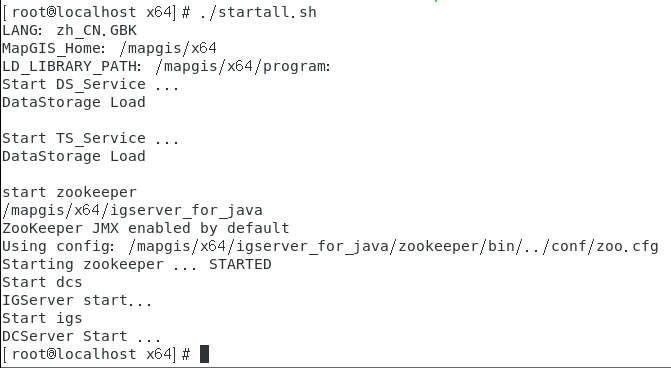
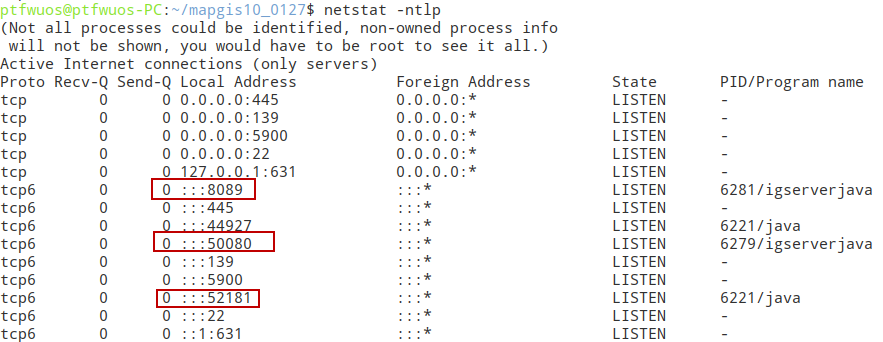
6. Run the command netstat -ntlp and check if ports 52181 and 8089 are successfully started. If authorization is successful, port 50080 will be started subsequently.
7. Use browser to access ServerManager (http://IP:8089);
8. If the client machine is networked at this time, authorization authentication can be performed automatically.
9. If the client is offline at this time, a QR code authentication dialog box will pop up:
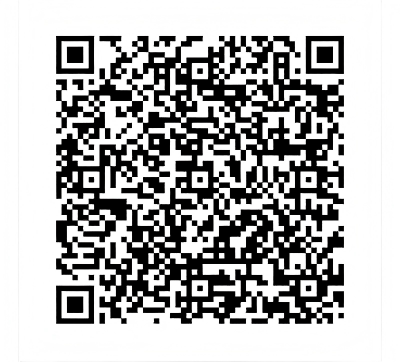
10. You can scan the QR code to obtain authentication information via your mobile browser (WeChat is not recommended) or other third-party apps:

Tips:
If the user needs to update authorization information, please delete the "/mapgis10/RegKey" file, and execute the commands "bash stopall.sh" and "bash startall.sh" in order to restart the IGServer service.
11. After the certification is successful, use the browser to access the MapGIS IGServer (JiuZhou) (http://IP:8089) and enter the username and password to access the MapGIS IGServer (JiuZhou).
Tips:
The default username is admin, and the password is sa.mapgis. You can click "Help" on the login page to fill it out.
12. The authorization method above first starts ServerManager, then enters the site to scan and authenticate. Another authorization method is to scan the code offline via the command line without entering the ServerManager site to scan for authorization. That is, the scan authentication is successful first, then ServerManager is launched to apply directly.
13. First, locate ".". /mapgis10/igserver_for_java/bin/" folder, run the following command, and a QR code authentication dialog box will pop up:
bash license.sh
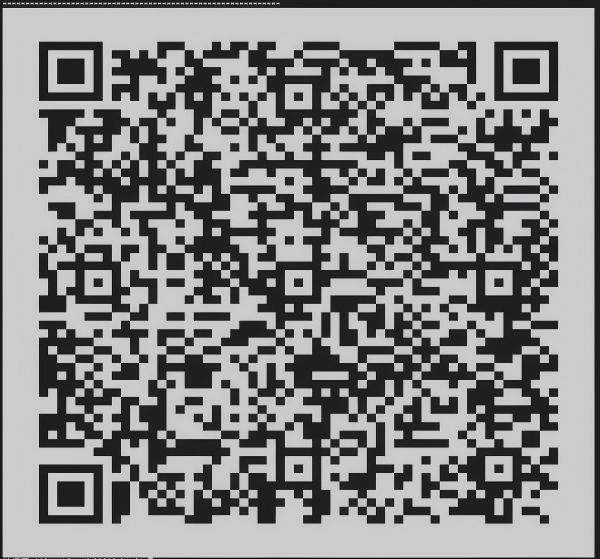
14. You can scan the QR code to obtain authentication information via your mobile browser (WeChat is not recommended) or other third-party apps:
15. After filling the code, the certification is successful, locate the "../mapgis10" folder and execute the following command to start the IGServer service:
bash startall.sh16. Run the command netstat -ntlp and check if the 52181 port, 8089 port, and 50080 port are successfully started.
17. Use a browser to access ServerManager(http://IP:8089);
Software uninstall
When users no longer use MapGIS IGServer (JiuZhou), the uninstallation methods are also different in Windows and Linux environments:
1. On Windows, go to the Start menu or the MapGIS 10 installation directory, click Run the uninstallation tool, and you can uninstall the software;
2. In the Linux environment, go to the MapGIS 10 installation directory and delete the extracted running environment directly to uninstall the software.