
Log
Login Log
 Function Description
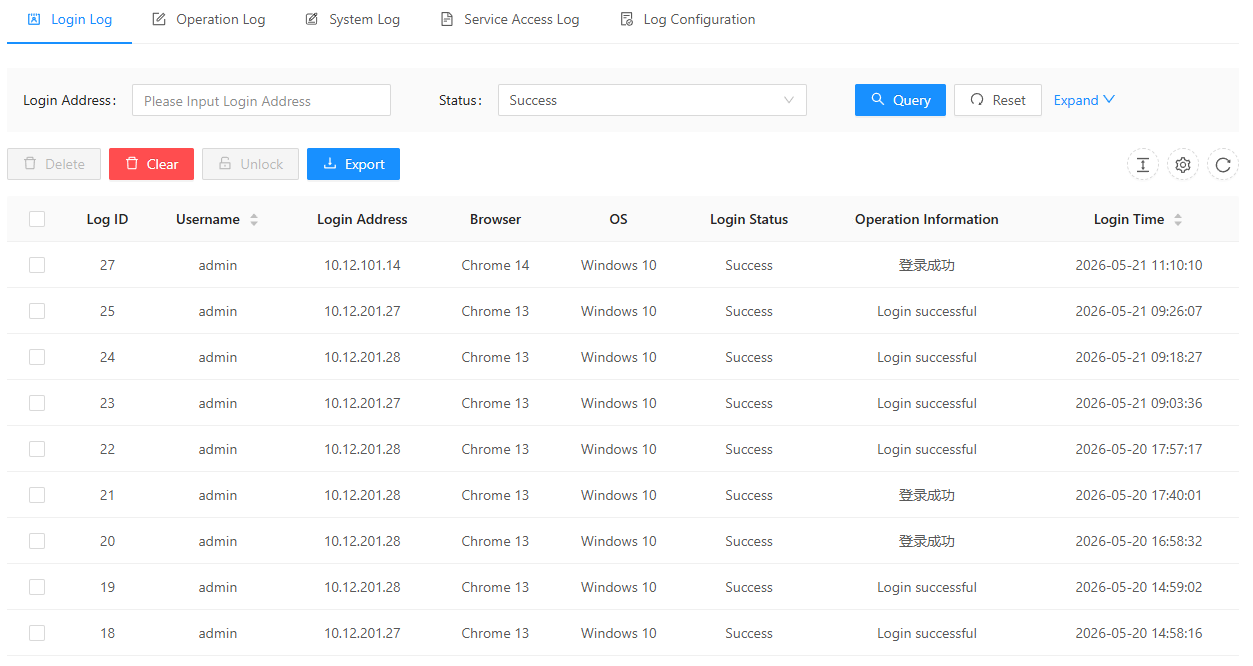
The user login log records information about registered users logging in and out of the site, including various operation logs such as login, logout, operating system, browser, time, and IP.
 Operating Instructions
1. On the " Logs " page, click " Login Logs " to view all login logs;
2. Enter the login address in the Login Address Input Box, and click " Search " to find the logs logged in through that address;
3. Select the login status in the Login Status input box, and click " Query " to find the login logs for that status;
4. Enter the login name in the login name input box, and click " Search " to find the login logs for that name;
5. Select the start date and end date in the Login Time input box, and click " Search " to find the user login logs within the selected dates.
Operation Log
Function Description
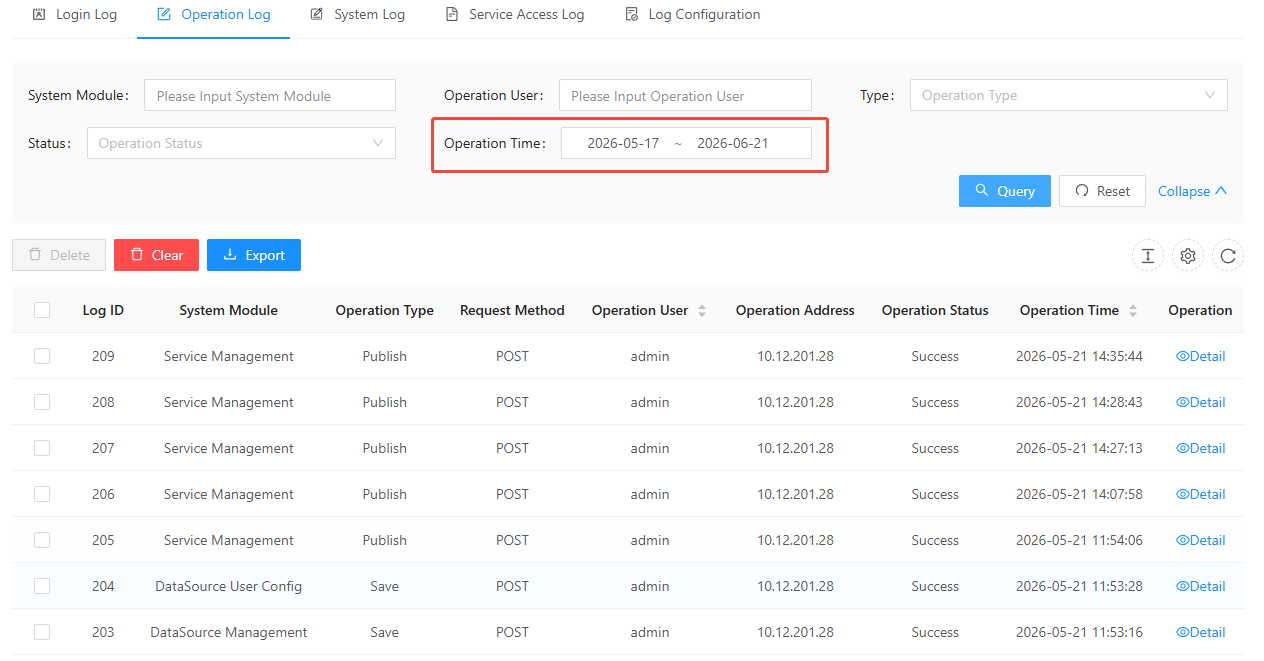
The operation log records system operation log information, including various operation logs such as data services, user operations, functional services, system configuration and extended services.
Operating Instructions
1. On the " Logs " page, click " Operation Logs ," select a start date and an end date, and click " Search " to find the user operation logs for the selected dates, as shown below:
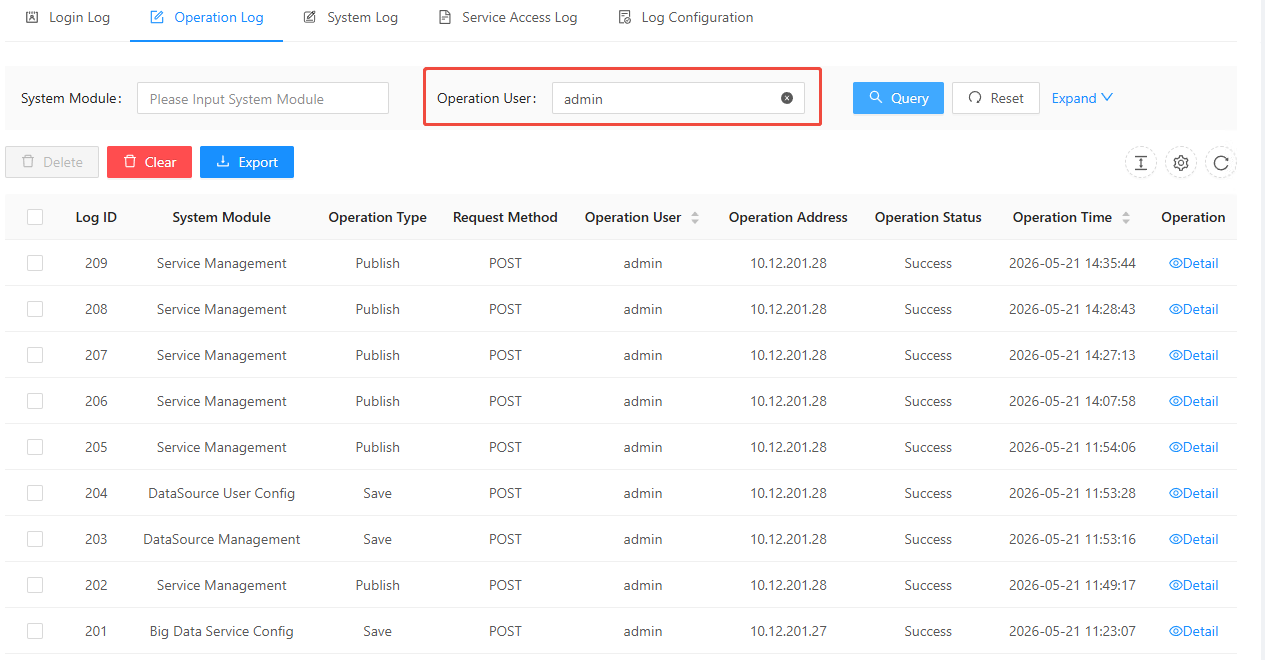
2. On the " Logs " page, click " Operation Logs ," enter the username in the "Operator" input box, and click " Search " to find all operation logs for the specified user, as shown below:
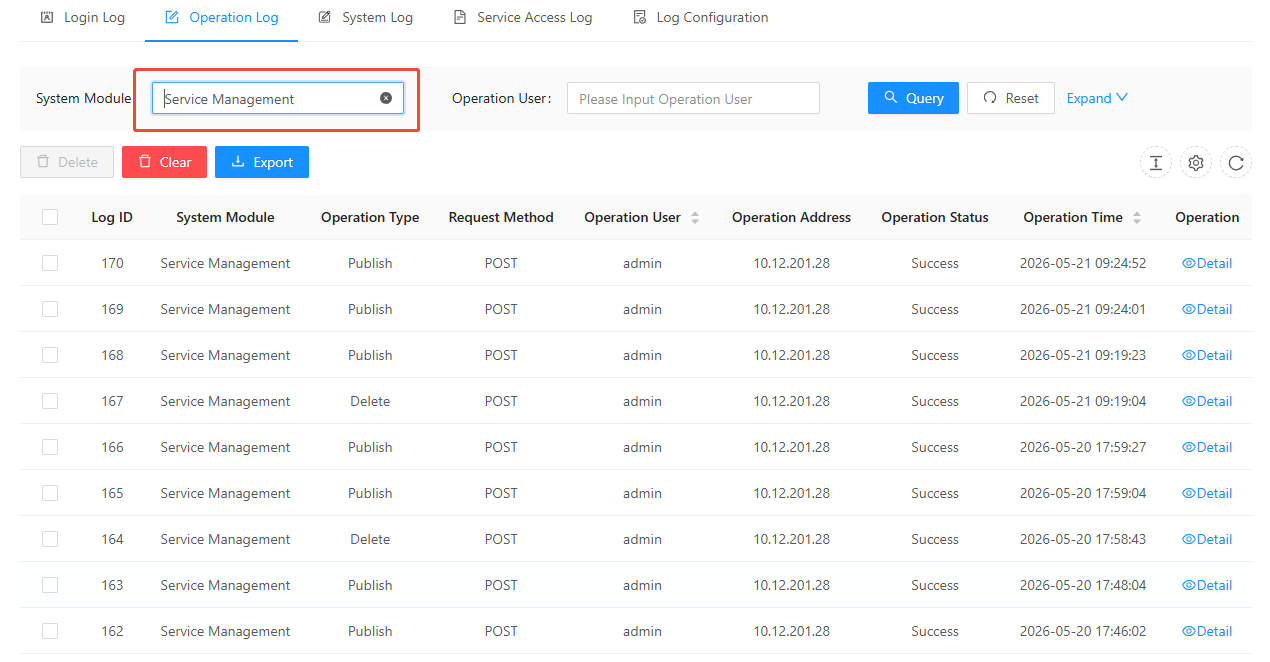
3. On the " Logs " page, click " Operation Logs ," enter the system module to which the log belongs in the "System Module" input box, and click " Search " to find all user operation logs for that system module, as shown in the image below:
4. On the " Logs " page, click " Operation Logs ," enter the operation type in the "Type" input box, and click " Search " to find all user operation logs under the specified type, as shown in the image below:
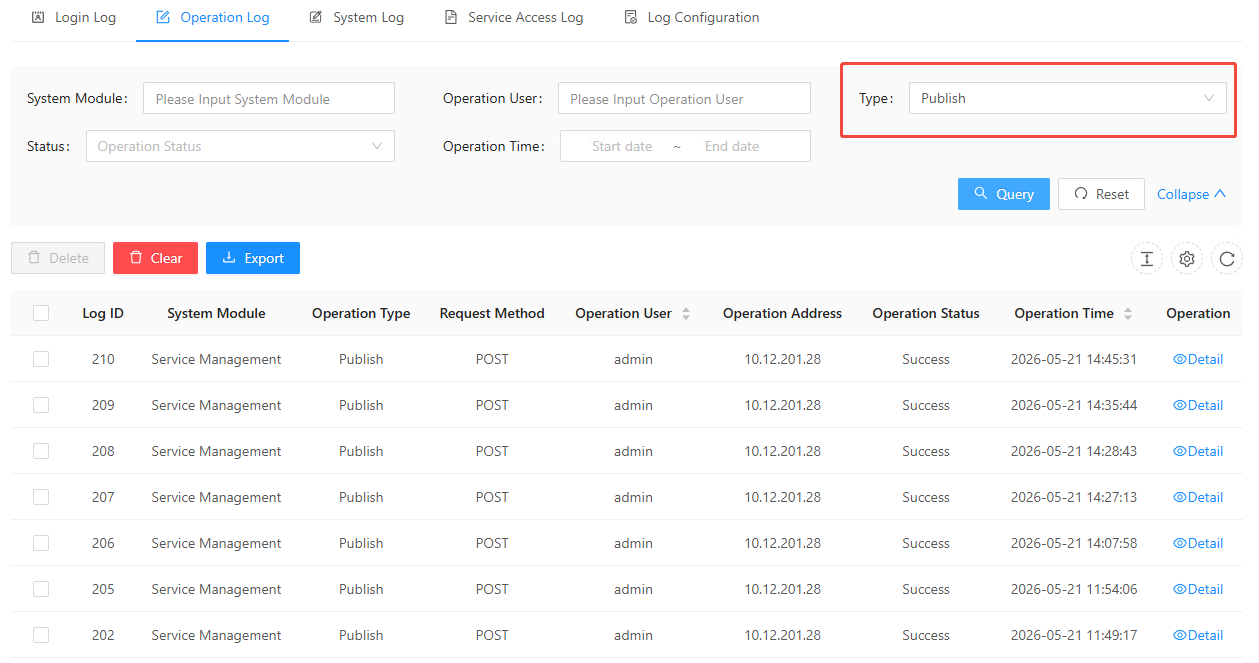
5. On the " Logs " page, click " Operation Logs ," enter the login status in the "Status" input box, and click " Search " to find all user operation logs under the specified status, as shown in the image below:
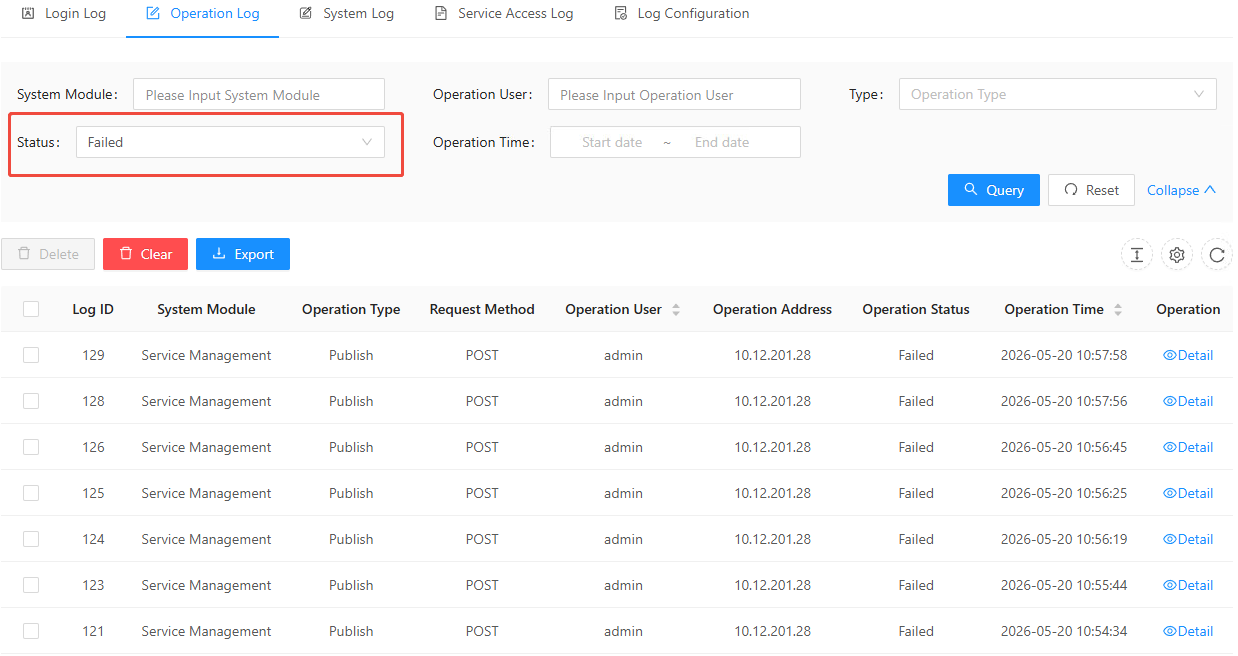
System Log
Function Description
The system log records the system's running logs, including the running log information of IGServer, DCServer, WorkflowServer, and TaskServer.
Operating Instructions
1. On the " Logs " page, click " System Log " to view all system log information.
2. Enter a keyword in the keyword input box and click " Search " to display log information containing that keyword;
3. Select the type in the Type input box, and click " Query " to display the log information for that type;
4. Select the level in the level input box, and click " Query " to display the log information for that level;
5. Select a start date and an end date in the time input box, and click " Query " to display the logs within the selected dates.
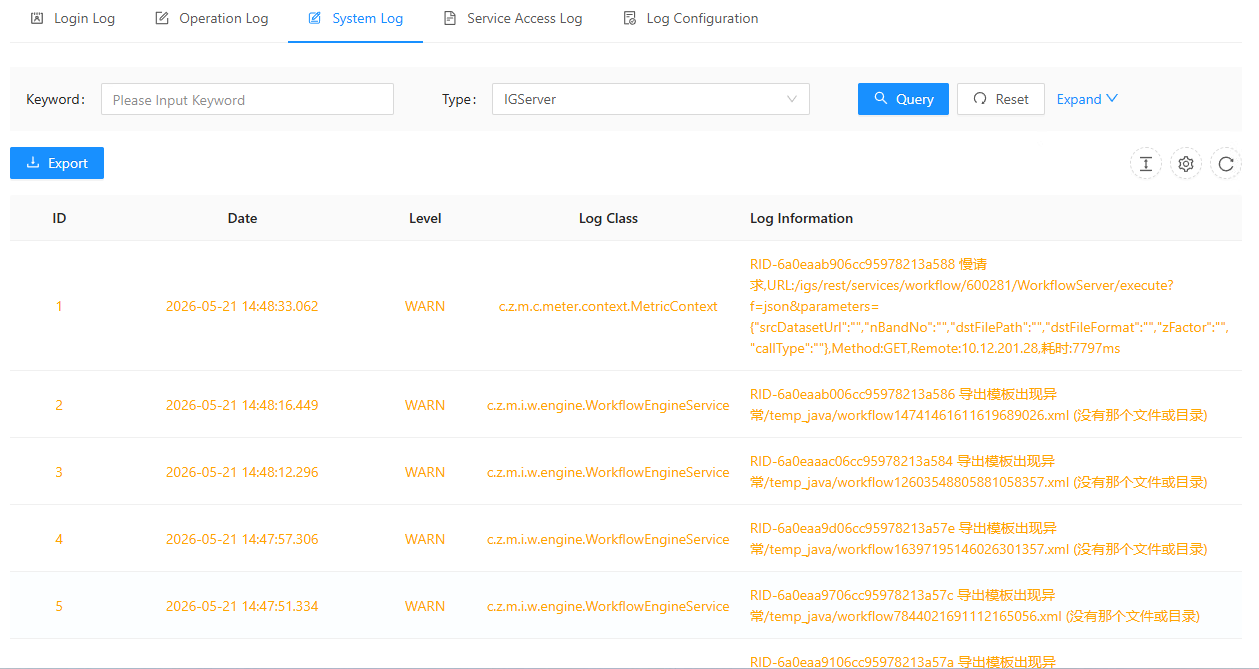
Service access logs
Function Description
The service access log records logs of service access, including access time, client IP, service instance, request URL, return status code, and time taken.
Operating Instructions
1. On the " Logs " page, click " Service Access Logs " to view all service access log information;
Tips:
You must enable service access logging in the log configuration to record log information.
2. Enter the client IP address in the Client IP input box, and click " Query " to find the logs accessed through that address;
3. Select the start and end dates in the time input box, and click " Search " to find the access logs within the selected dates;
4. Enter the status code in the Return Status Code Input Box, and click " Search " to find the access log that returned that status code;
5. Enter the service name in the service name input box, and click " Search " to find access logs containing that service name;
6. Enter the time duration in the Time Duration Range input box, and click " Query " to find the service access logs within the time duration range.
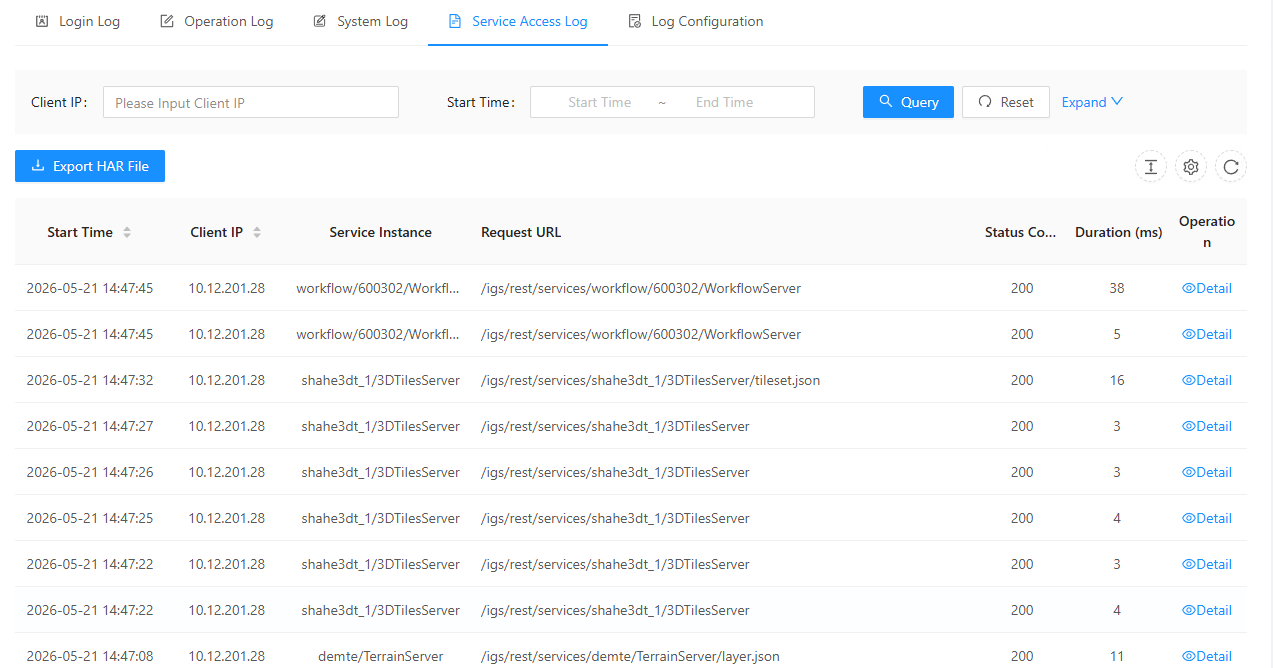
Log configuration
Function Description
Log configuration provides settings for system logs and service access logs.
Operating Instructions
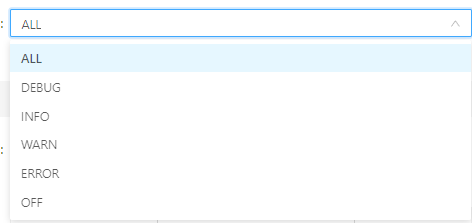
1. On the " Logs " page, click " Log Configuration ". Multiple levels can be selected for the system log. After saving the settings and restarting the service, the system log will be recorded according to the settings here.
2. You can choose whether to enable service access logging and set the service access URL to be monitored. For example, the default setting is /igs/rest/services/**, which means that access to the service through this URL path will be logged.
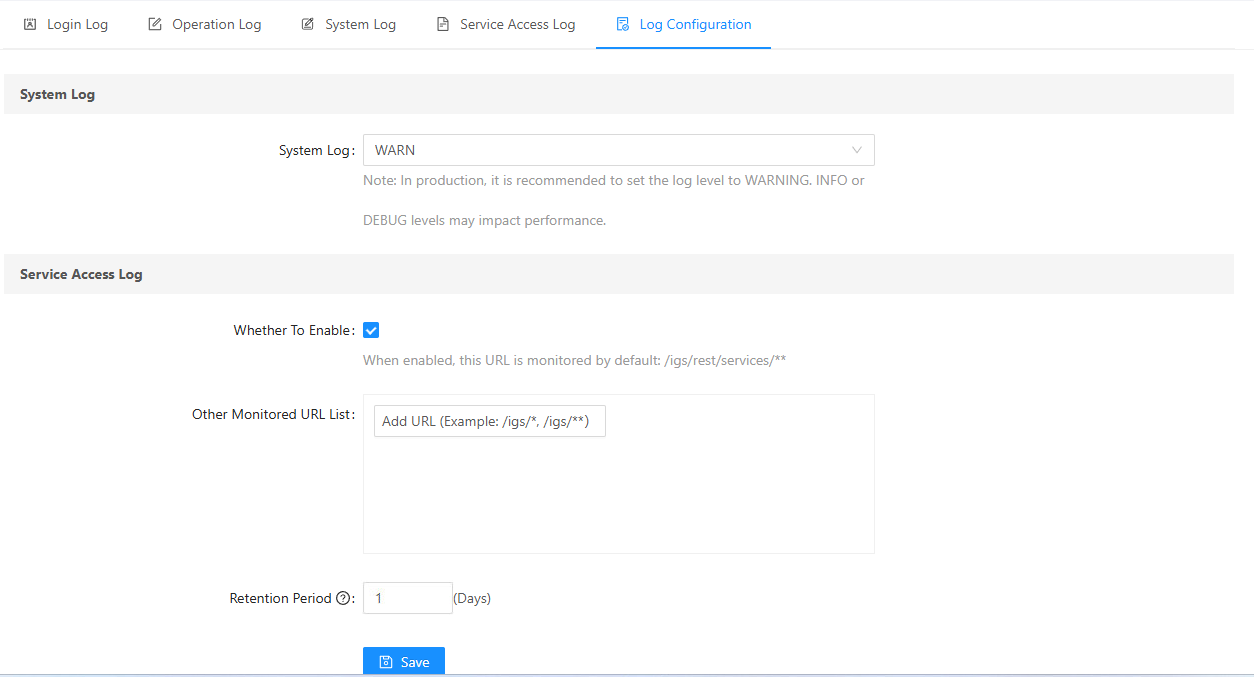
- [Enable]: Enabling this feature allows for real-time monitoring of service access status. Enabling service access monitoring is only for issue tracking and performance tuning. In production environments, it is recommended to disable service access monitoring, as doing so may severely impact performance.
- [List of URLs for Monitoring Services]: This allows you to edit the list of URLs for monitoring services and monitor access to specific services.
Tips:
After enabling service access monitoring, you must configure a list of URLs to monitor. For example, entering "/igs/rest/services/**" in the URL list will monitor access information for all services; entering "/igs/rest/services/{service name}" will monitor access information for a specific service. The service name does not support Chinese characters or special characters.
- [Expiration Time]: Service access log information that has exceeded this time will be automatically cleared. If this field is empty, service access logs will not be cleared.