
Security configuration
Service security configuration
Token Configuration
 Function description
MapGIS IGServer provides a token-based service access mechanism, meaning users only need to provide Token when accessing protected service resources, without needing username or password information. A token is a string of information containing the username, expiration date, and certain proprietary information, encrypted by a shared key.
 Operating instructions
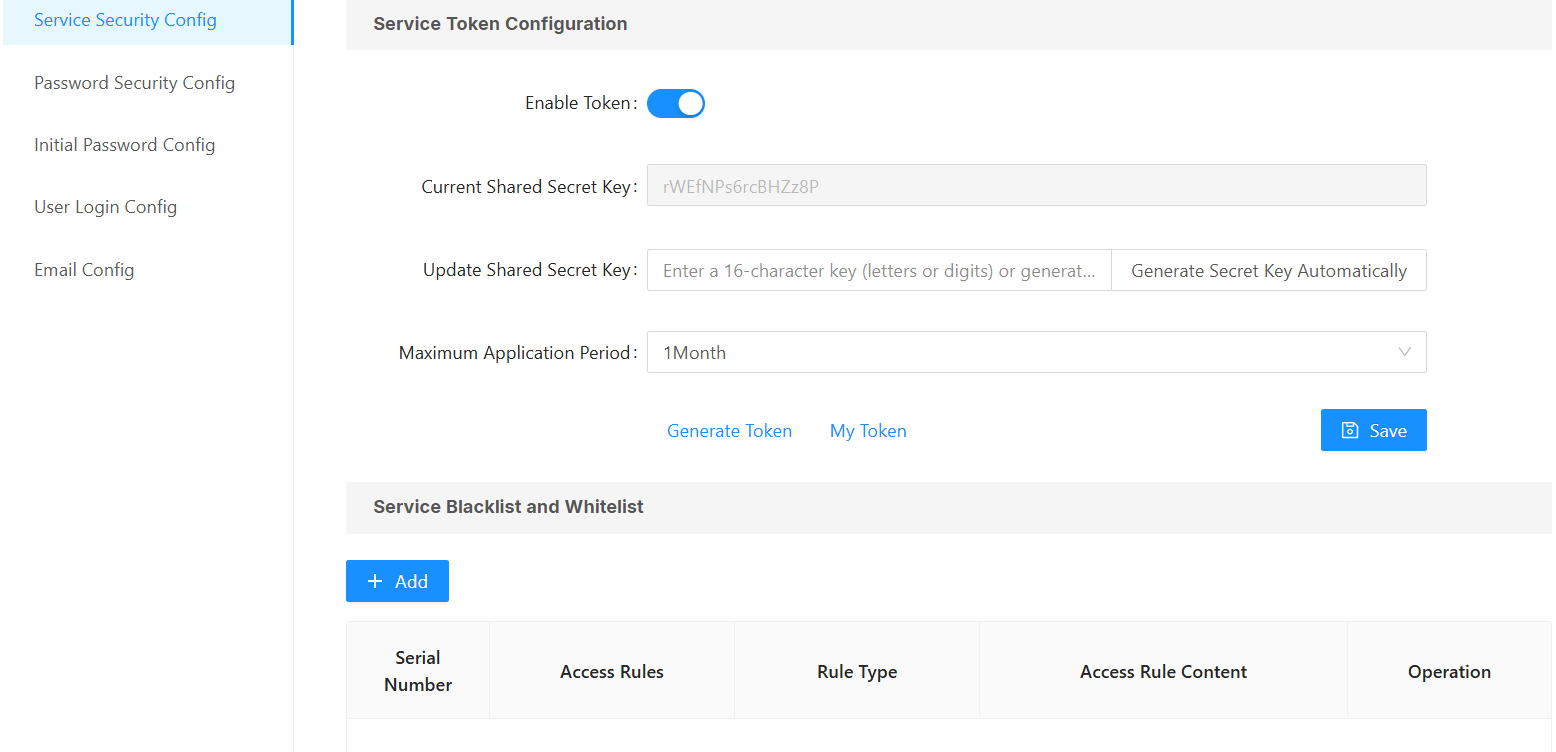
1. Switch to the "Security" - > "Security Configuration" page, click "Service Security Configuration," enable the token and save the configuration to enable the token service access mechanism;
Tip:
The current shared key is unique; after modification, the original token information becomes invalid and must be regenerated.
2. Click "Generate Token" to generate Token information for the specified user
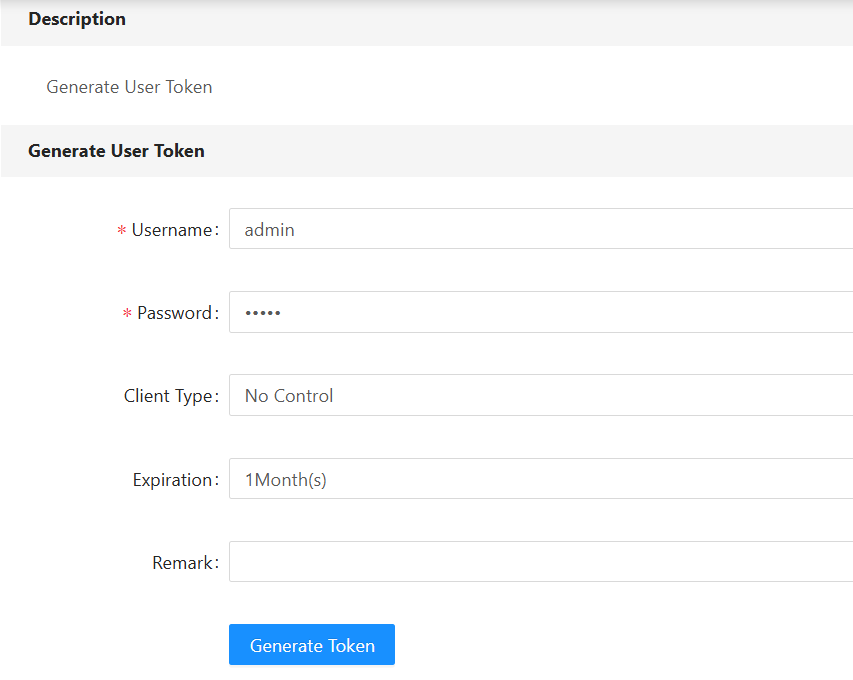
- Username/Password: Enter your username and password;
- Client types: including No Control, IP, and referer methods:
- No control: controlled only through Token tokens;
- IP: Controlled through two restrictions: Tokens and IP addresses. For example, if the IP address is 192.168.81.115, only clients at this IP address can access the service via tokens; clients at other IP addresses cannot access it;
- Referer: Controlled through two restrictions: Tokens and referers. If the referer is http://localhost:8089, it is only available when the address contains the string when the client accesses the service.
- Expiration Time: The validity period of token information. If this period is exceeded, the token information becomes invalid and must be regenerated.
3. Click "Generate Token" to generate a Token for the specified user. Please remember this information. Use this token in private services. For specific operations, refer to the "Permission Settings" section when publishing the map service.

4. Click "My Token" to open a page that records all generated token information, making it easy to check token information anytime when using it.
Blacklist and whitelist
Function description
MapGIS IGServer supports managing service access permissions through blacklist and whitelist modes. Users on the blacklist cannot access the service at any time, while those on the whitelist can access the service at any time.
Operating instructions
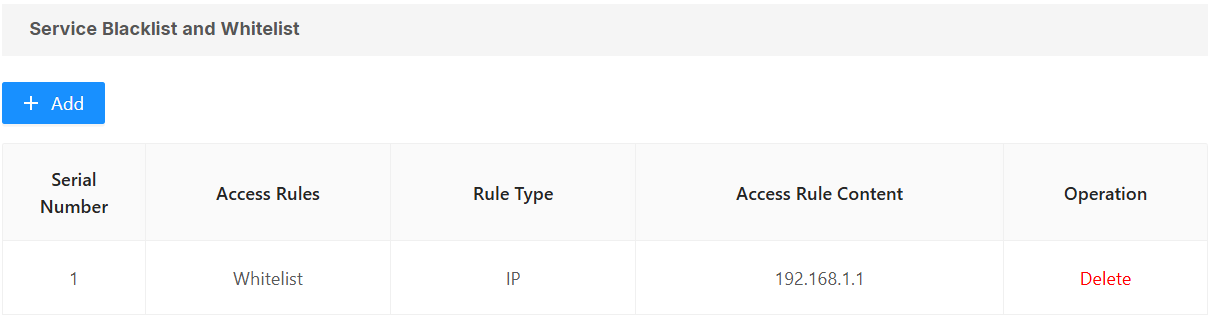
1. Switch to "Security" - > "Security Configuration" page, click "Service Security Configuration" to view the blacklist and whitelist information:
2. Click "Add" to add the blacklist and whitelist:
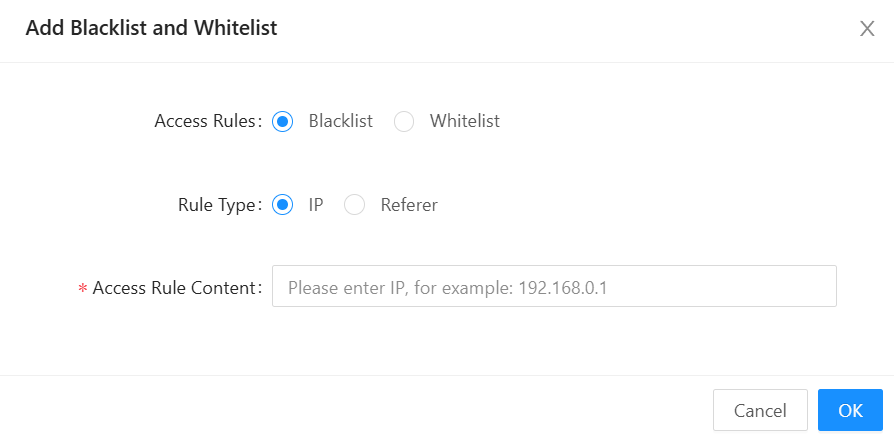
- Access Rules: Users on the blacklist cannot access the service at any time, while users on the whitelist can access the service at any time.
- Rule types: Includes IP and Referer methods:
- IP: Set a blacklist and whitelist based on the client's IP address;
- Referer: Set the blacklist and whitelist through Referer.
Password security configuration
Function description
MapGIS IGServer provides password security configuration features.
Operating instructions
1. Switch to "Security" - > "Security Configuration" page, click "Password Security Config," click "Save" to restart and take effect;
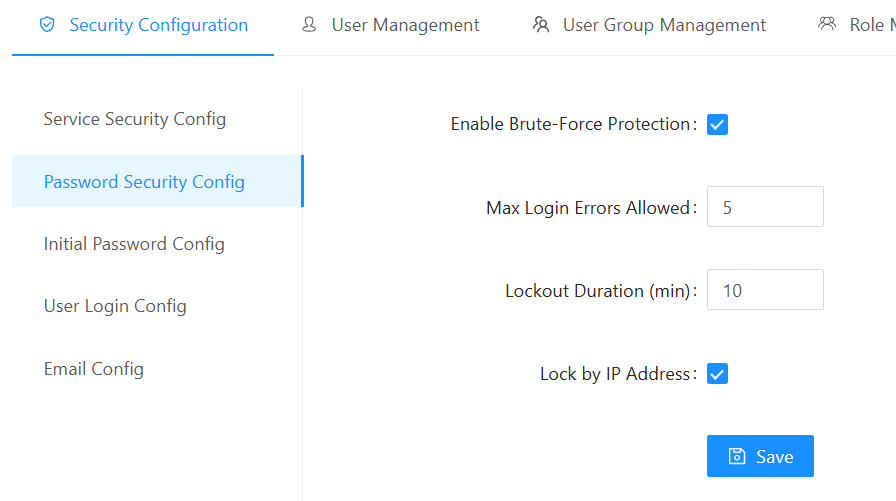
- Whether to enable brute-force cracking: Checking this box enables brute-force cracking.
- Allowed consecutive failures: Set the number of incorrect password entries.
- Automatic Unlock Time: Set the automatic login unlock time.
- IP locking: Check this box to lock via IP.
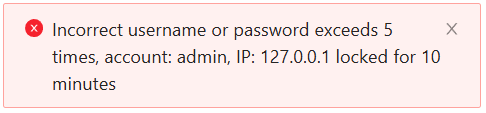
2. If the password entered during login exceeds the above settings, the account will be locked.
Initial password configuration
Function description
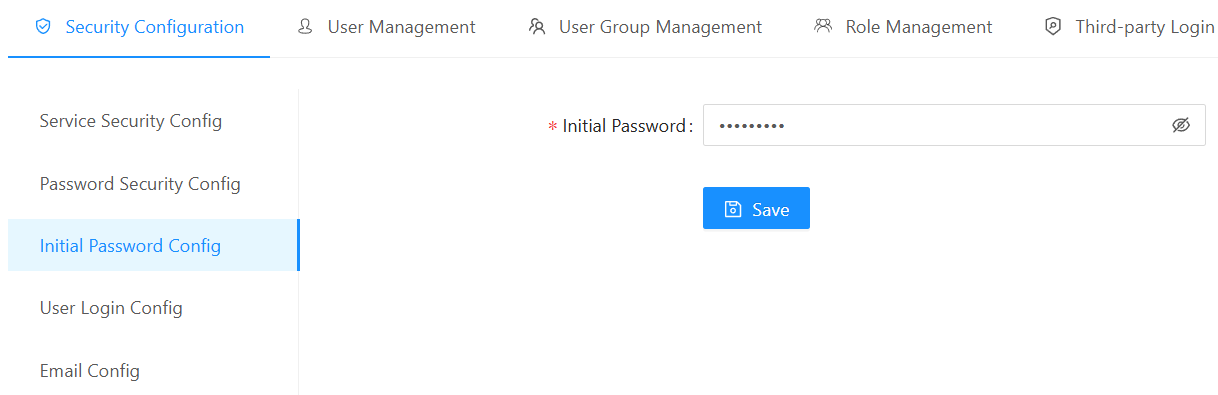
MapGIS IGServer provides an initial password configuration function.
Operating instructions
1. Switch to "Security" - > "Security Configuration" page, click "Initial Password Config," then click "Save" to restart and take effect.
User login configuration
Function description
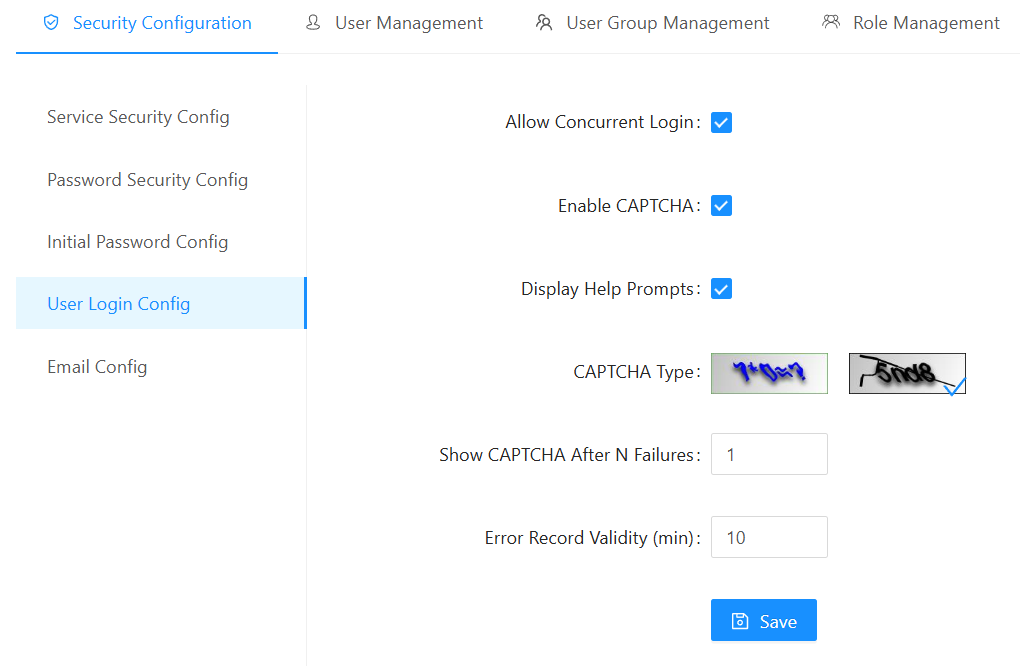
MapGIS IGServer provides user login configuration features.
Operating instructions
1. Switch to the "Security" - > "Security Configuration" page, click "User Login Config" to set user login settings, then click "Save" to restart and take effect.
Email Config
Function description
Configure SMTP mail server information for sending emails.
Tip:
Most mailboxes do not have SMTP services enabled by default; users need to manually enable these services. For specific settings, please refer to the official instructions of each email.
Operating instructions
1. Switch to "Security" - > "Security Configuration" page, click "Email Config" to set your email information:
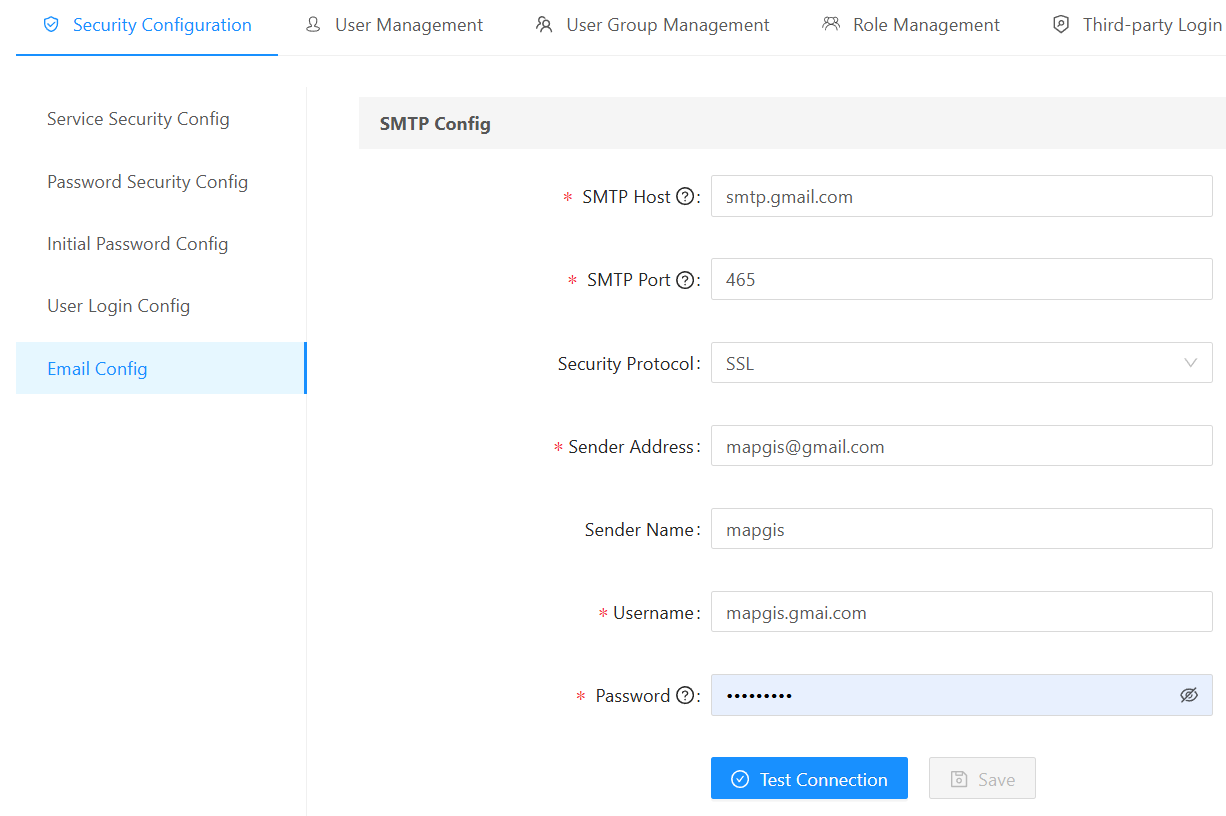
- [SMTP Address/Port/Security Protocol]: Set the SMTP address/port/security protocol information for the email. The settings for several common email settings are as follows:
| Serial number | Mailbox | SMTP address | SMTP port | Security protocols |
|---|---|---|---|---|
| 1 | Gmail | smtp.gmail.com | 465/587 | SSL/TSL |
| 2 | Outlook/Hotmail | smtp-mail.outlook.com | 587 | STARTTLS |
| 3 | iCloud Mail | smtp.mail.me.com | 587 | STARTTLS |
| 4 | Foxmail | SMTP.foxmail.com | 25 | None |
- [Sender Email Address]: Set the sender's email address.
- [Sender Display Name]: Set the sender display name.
- [User Account]: Set the login account for your email.
- [User Password]: Set the email SMTP service authorization password. Some mailboxes require a separate authorization password for SMTP services.