Vector Tile Service
Publish service
 Function Description
This feature allows you to publish MapGIS vector tiles and MBTiles as MapGIS standard vector tile services.
Tips:
When publishing a service, you can only select the corresponding files in the registered folder. See " Folder " for detailed steps.
 Operating Instructions
1. On the Service Admin page, click " Publish Service " - " 2D Map Services " - " Vector Tile Service " to launch the Tile Service Publishing page;
2. Set Basic Information, you can set the following information:
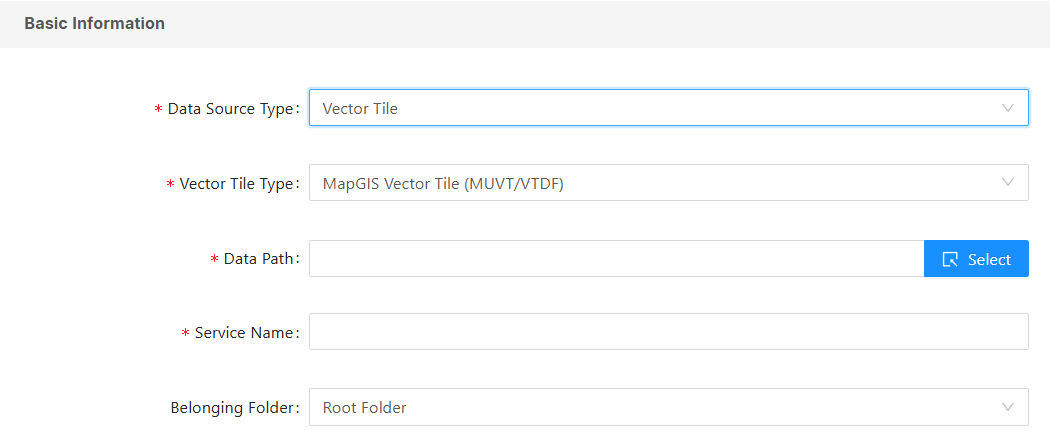
- [Data Source Types]: Supports seven sources: Vector tiles, Vector tile folders, Vector tile MongoDB, Vector tile MongoDB batch data (Excel), Vector tile PostgresQL, Vector tile PostgresQL batch data (Excel), and DataStore MongoDB vector tiles.
- Vector tiles include four types: MapGIS vector tiles (MUVT, VTDF), MapGIS vector tiles (MongoDB), MapGIS vector tiles (catalog format), and MBTiles. MapGIS vector tiles (MUVT, VTDF) are MUVT or VTDF tiles clipped from MapGIS (format *.MUVT/*.VTDF); MapGIS vector tiles (MongoDB) are vector tile data directly stored in the MongoDB database; MapGIS vector tiles (catalog format) are MapGIS vector tiles stored in a catalog format; and MapGIS tiles (MBTILES) are vector tiles stored in MBTILES tile format (format *.MBTILES).
- Vector tile folder: When there are multiple vector tile files, they can be published in batches via folders;
- DataStore MongoDB Vector Tiles: Raster tiles stored in DataStore's MongoDB data source for big data.
- [Data Path]: Select the storage path of the data source on the server (for MongoDB, you need to fill in the data source address, database name, username and password);
- [Service Name]: Sets the name of the current service;
- [Belonging Folder]: Sets the current service's domestic folder.
- [Enable Tile Encryption]: Allows you to set an encryption algorithm for the vector tile service, including SM4 and AES. After encryption, the front-end needs to decrypt the tile when calling the service. See " Map Services " for details.
3. Access permissions for the service can be set in the " Security Settings ". For details, please refer to the " Authorization Settings " section of the 2D map service.
4. Click the " Publish Service " button to publish the current vector tile service.
Service Details
After publishing the Vector Tile service, you can view the service information and edit the service parameters through the Service Details.