Feature Service
Publish service
 Function Description
This feature allows you to publish map documents, ArcGIS REST services, map document folders, GIS layer data, DataStore PG data sources, Shapefile folders, and GeoJSON data as MapGIS standard feature services.
Tips:
When publishing a service, you can only select the corresponding files in the registered folder. See " Folder " for detailed steps.
 Operating Instructions
1. On the Service Admin page, click " Publish Service " - " 2D Map Services " - " Feature Service " to launch the Feature Service Publishing page;
2. Set Basic Information, you can set the following information:
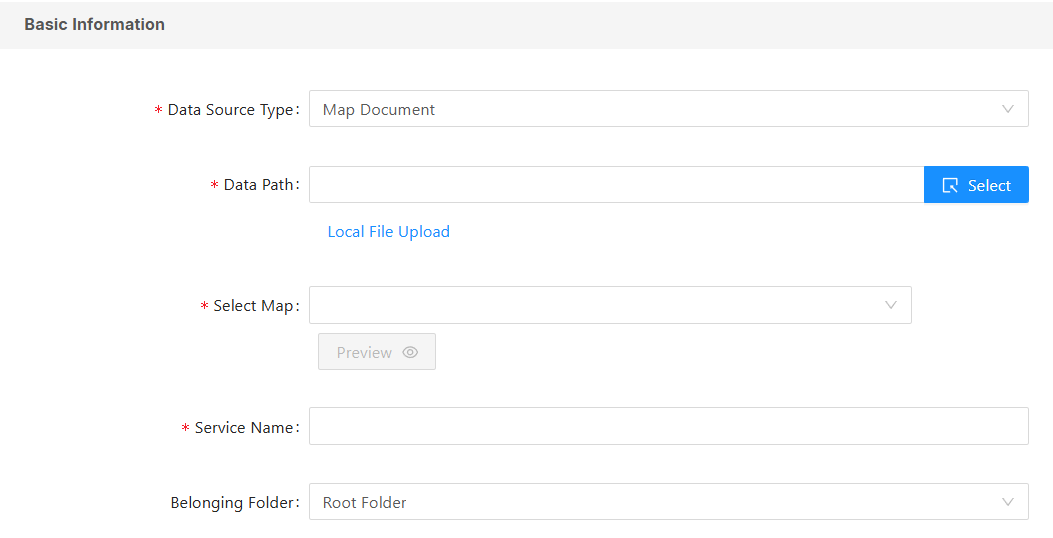
- [Data Source Type]: You can choose from seven types: Map Document, ArcGIS REST Features Service, Map Document Folder, Shapefile Folder, GeoJSON Data, GlS Layer Data, and DataStore PG Data Source;
- Map Document: MapGIS map document, which must contain a two-dimensional map;
- ArcGIS REST Features Services: ArcGIS Rest map services allow you to access and manipulate service resources via URLs;
- Map Document Folder: A folder containing multiple MapGIS map documents;
- GlS Layer Data: You can select multiple layer data from the GDB list under the data source;
- DataStore PG Data Source: Selects layer data under the PG data source deployed on a big data server site.
- Shapefile Folder: A folder containing multiple Shapefile files;
- GeoJSON Data: Selectable GeoJSON file data;
- [Data Path]: Click the " Select " button on the right to select the storage path of the data source on the server;
- [Select Map]: You can select one of the maps in the map document;
- [Service Name]: Sets the name of the current service;
- [Belonging Folder]: Sets the current service's parent folder;
If you select " ArcGIS REST Features Service " for " Data Source Type ", some settings will differ from those described above. The following explains the settings for " ArcGIS REST Service ":
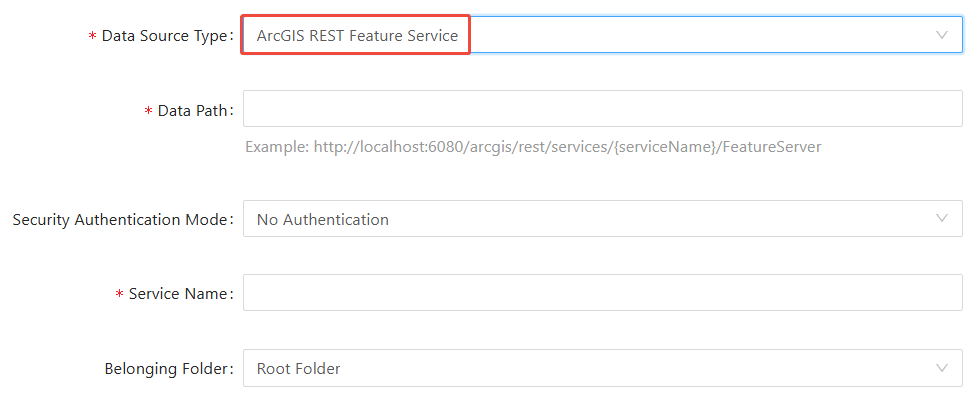
- [Data Path]: Enter the URL address of the service;
- [Security Authentication Mode]: You can choose from three methods: no security authentication, username/password, or token.
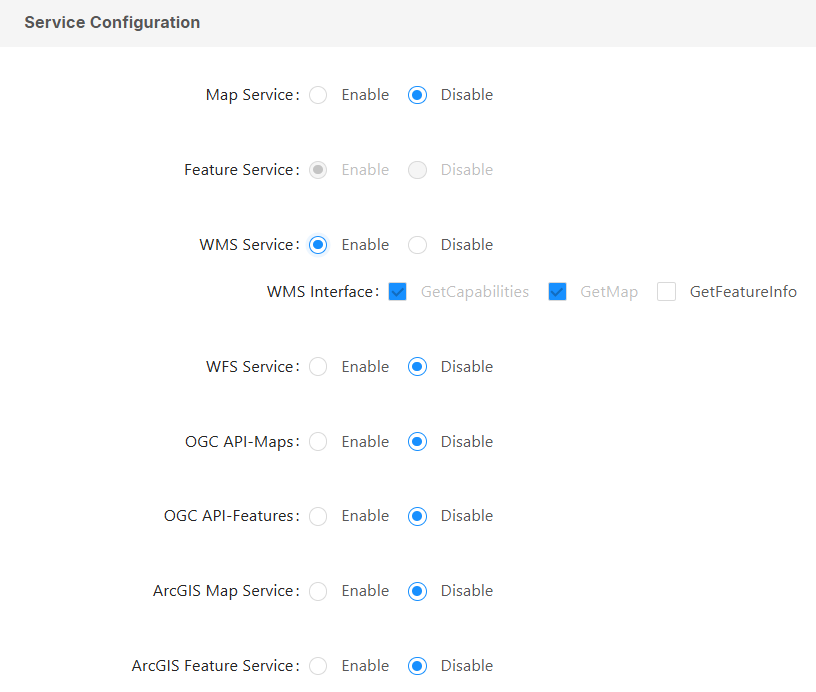
3. Configure services. You can enable other services and configure their interfaces in the " Service Configuration " section:
4. Access permissions for the service can be set in the " Security Settings ". For details, please refer to the " Authorization Settings " section of the 2D map service.
5. Click the " Publish Service " button to publish the service.
Service Details
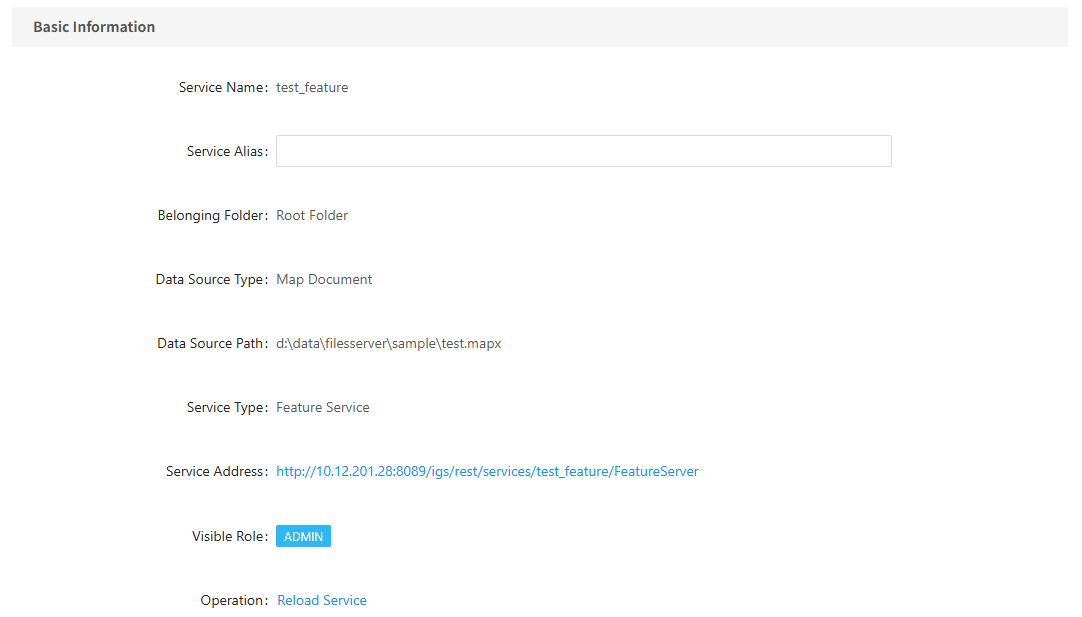
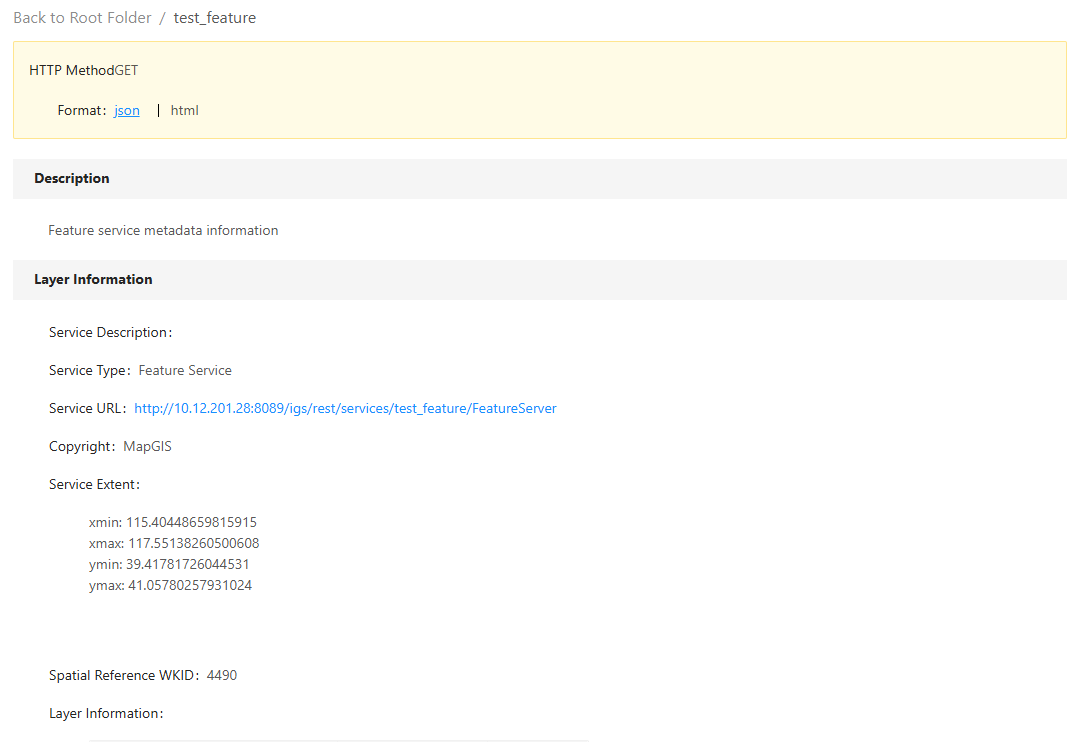
After publishing a feature service, you can view the service information and edit the service parameters through the service details.