
Roaming
Roaming
 Function description
Supports automated fly-throughs along specified paths, allowing users to explore the 3D scene and its data from all angles and multiple perspectives.
 Operating instructions
1. Go to the SceneViewer view, click the "Roaming" function in the right toolbar, and switch to the "Path Roaming" panel:
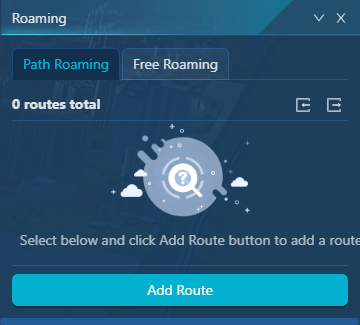
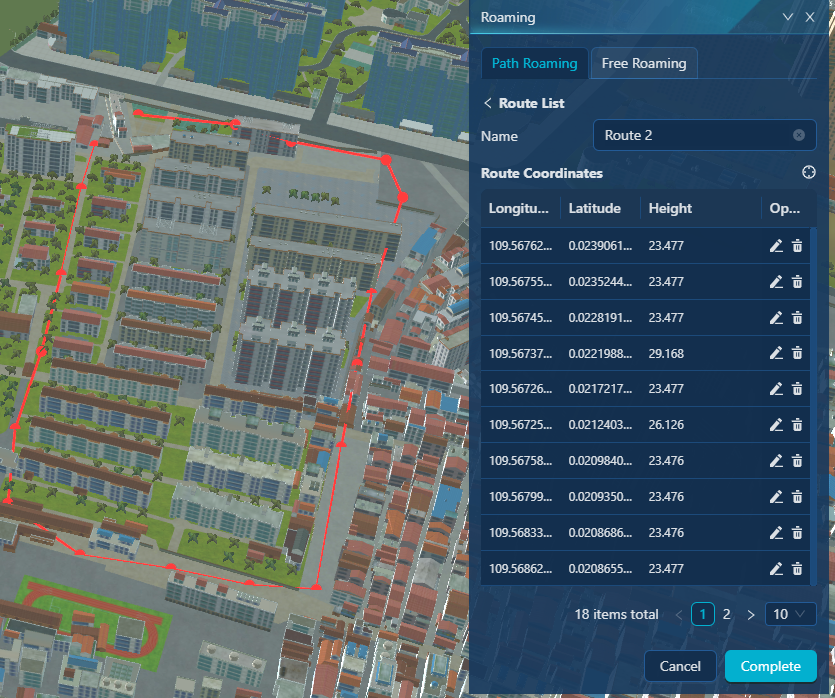
2. Click "Add Route" to enter the Edit Route panel. Click "Add Coordinate  " to interactively add route coordinates in the scene. Click "Complete" to complete the roaming route entry.
3. At the back of a route, "Roam  ", you can set the roaming parameters:
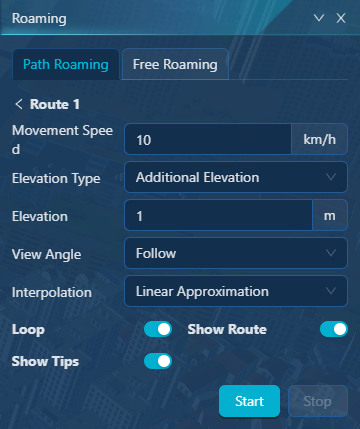
[Movement speed]: The speed of movement along the roaming route, in km/h;
[Elevation Type]: Set the height mode of the roaming waypoint.
- Additional elevation: After setting the elevation value, the perspective elevation value is the elevation value of each route point when roaming, and then the specified value is attached;
- Absolute Elevation: After setting the elevation value, the viewing angle is always at the specified value height when roaming.
[View Angle]: The system supports three methods: Follow, Lock First person, and God view:
- Follow: Roaming along a path with a fixed camera perspective. The viewing angle direction can be adjusted interactively, and the camera angle of view remains unchanged during roaming.
- Lock First person: switch the camera to participate in roaming from a first-person perspective; The position and orientation of the roaming route point are used as the camera roaming perspective to simulate an "immersive" experience. Users appear as if they are walking, driving, or flying along a route.
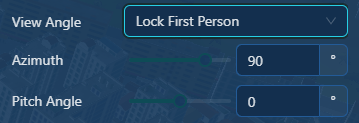
- Azimuth: The angle between the roaming viewpoint and the route point on the horizontal plane. When the value is 90°, the roaming viewpoint is in the same direction as the roaming route. - Pitch angle: The angle between the vertical direction and the horizontal plane of the roaming viewpoint; looking up is positive, and looking down is negative.- God view: the camera switches to a high-altitude top-down view; Overlooking the entire route and surroundings from a height, the camera position is diagonally above or directly above the target point, looking down on the whole picture like a "god".
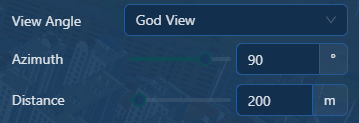
- Azimuth: The angle between the roaming viewpoint and the route point on the horizontal plane. When the value is 90°, the roaming viewpoint is in the same direction as the roaming route. - Distance: The distance between the roaming camera and the route. The larger the value, the greater the overlooking height.[Interpolation]: An interpolation algorithm for smooth paths, after interpolation, the roaming path will be smoother, and the roaming effect will be more realistic and smooth. The system provides algorithms such as Lagrangian interpolation, linear approximation, and Hermit interpolation.
Tips:
Different interpolation algorithms are suitable for different roaming scenarios. "Lagrange Approximation" and "Hermite Approximation" smoothly interpolate the roaming route, and when roaming in the "God view" mode, it can effectively transition smoothly at turns. "Linear Approximation" is the simplest and most "approximate" interpolation method, if the "lock first person" method is used to roam, it can drive accurately along the route to avoid the wall impact effect caused by the "smoothness" of the route , but the line of sight change will be stiff at the turn.
- [Loop]: When checked, the path roaming will be continuously looped until the "Stop" button is manually clicked, and the roaming will end.
- [Show Route]: When checked, the roaming route can be displayed during roaming.
- [Show Tips]: When checked, information such as time spent and distance can be displayed during roaming.
4. Click "Start" to dynamically roam along the route in the scene view. Click "Pause/Continue" to pause/resume scene roaming; Click "Stop" to end the scene roaming and the perspective will return to the starting point.
Free Roaming
Function description
After starting free roaming, users can control panning, rotating, and other operations in the scene with a mouse or keyboard.
Operating instructions
1. Go to the SceneViewer view, click the "Roam" function on the right toolbar, and switch to the "Free Roaming" panel:
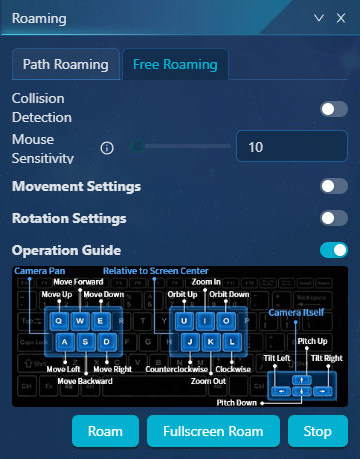
2. Roaming parameters can be set:
- [Mouse Sensitivity]: When roaming in full screen,
- [Movement Settings]: Set the movement step mode, including "Dynamic Step" and "Fixed Step".
- Dynamic Step: The system automatically calculates the translation distance, not a fixed pixel value, but a logical distance related to the current camera height, field of view (FOV), and the curvature of the Earth.
- Fixed step: Regardless of whether the camera is at high altitude or close to the ground, the distance moved by each key is the moving step in unit meter. It is suitable for precisely controlling scenes (such as indoor, urban block-level roaming), but only moves in fixed steps, such as 10 meters, at a time at high altitudes, and the change is almost invisible.
- [Rotation Setting]: After opening, the rotation step length can be set, and the value range is 0~360°.
3. Click "Roam" to enable panning, rotating, and other operations via keyboard shortcuts..
4. Click "Fullscreen Roam" to enter the full-screen display mode, which can be panned, rotated, and other operations can be performed through mouse/keyboard shortcuts. Click "ESC" to exit full-screen roaming.
5. Click "Stop" to exit roaming mode.